How to Use MissNoti - See Dismissed Notifications Again and Block Spammy Alerts
Ever cleared your notification shade and swiped away something important along with it? Maybe you only glanced at a message preview and later wanted to read it again. Meanwhile, shopping apps send promo alerts several times a day and bury the notifications you actually care about.
MissNoti keeps a record of the notifications that arrive on your phone so you can open them again anytime, and quietly filters out the ones you don’t want. Since it’s an app you open every day, it’s also made to be a pleasure to look at, with a fresh Aurora Glass design throughout.
Who it’s for
- Anyone who has dismissed a notification by accident and wanted it back
- Anyone who keeps missing important alerts because of ads and promotions
- Anyone curious how many notifications they get a day, and which apps send the most
The Aurora Glass design
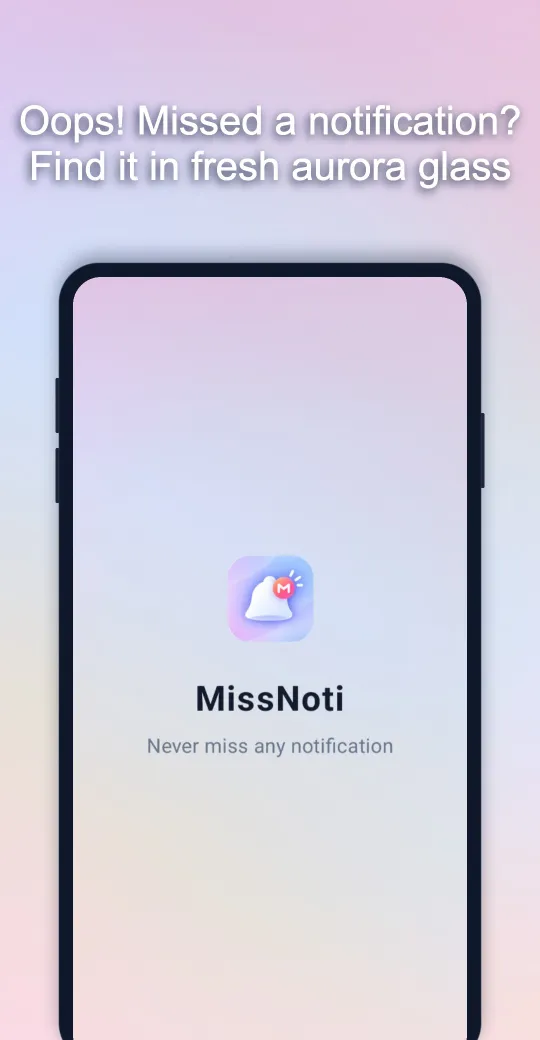
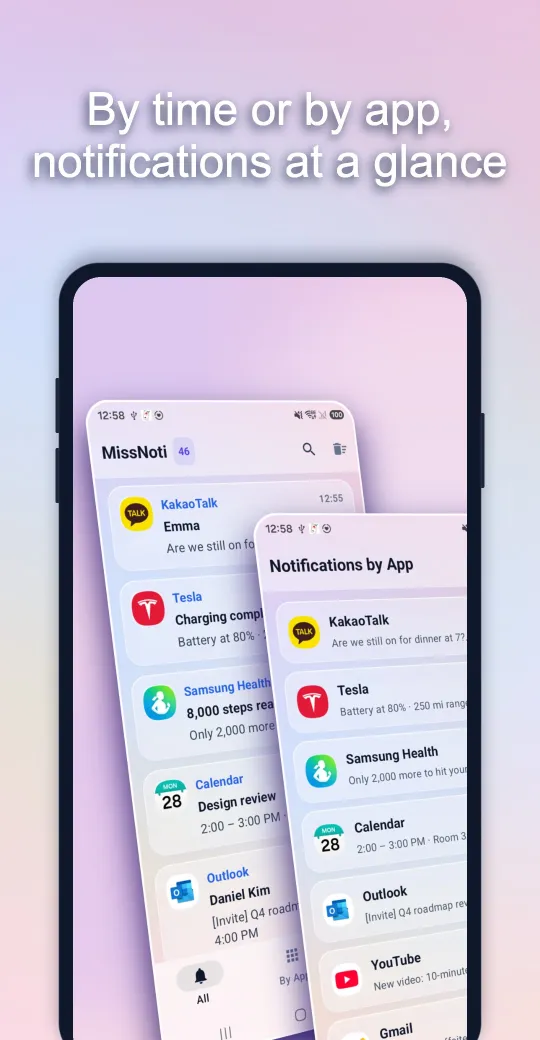
Translucent, glass-like cards float gently over a softly shifting aurora background. Every tap gets a bouncy, satisfying response, so even checking your notifications feels good. The same look carries through every screen, from your notification list to blocking, the Daily Report, and the widget.
1. See past notifications again
Once you turn on Notification Access, MissNoti records notifications from every app as they arrive. Even if you swiped away a message, social, banking, or shopping notification, you can open it again in MissNoti.
- All: See everything in the order it arrived.
- By App: See notifications grouped by app.
- Tap a notification to jump straight into that app and reply or follow up.
2. Search, attached images, and storage cleanup
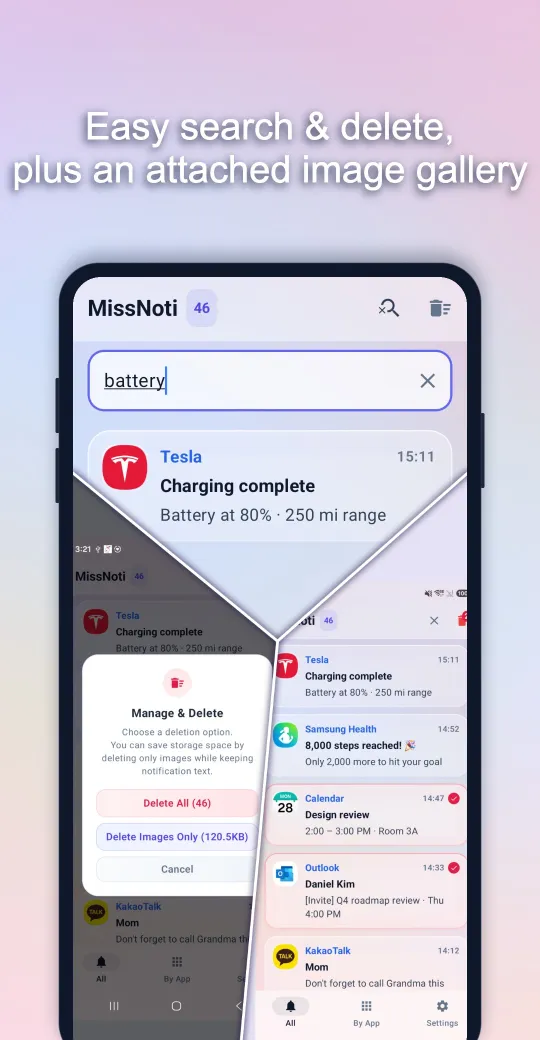
However many notifications pile up, search by app name, sender, or a word in the message to find what you need right away. Images attached to notifications can be enlarged or viewed together in a grid.
If the history starts taking up space, use Manage & Delete to clear everything, or choose Delete Images Only to keep the text and remove the images that take up the most room. You can also delete by app or pick individual items.
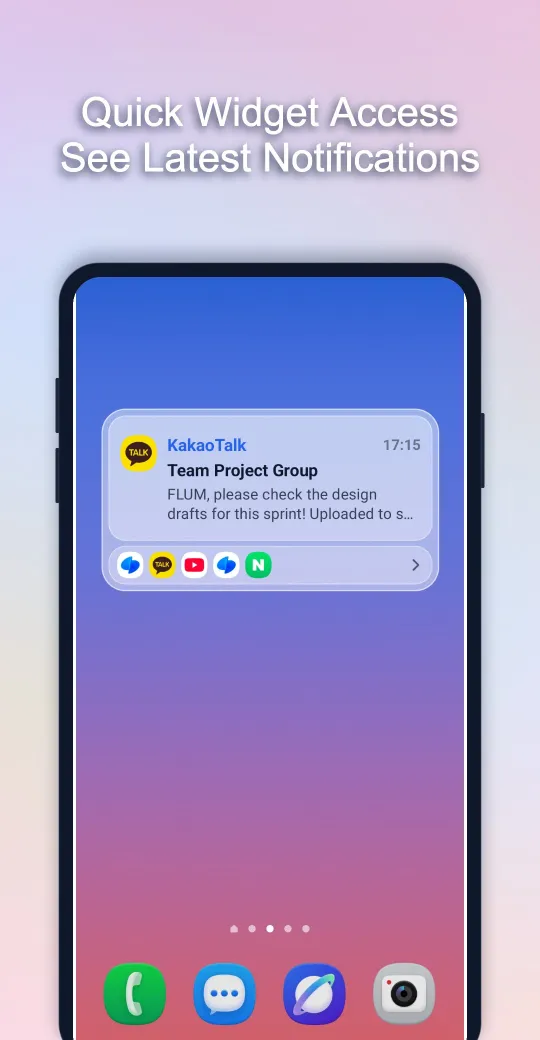
Add the widget to your home screen to check your latest notifications without opening the app.
3. Block annoying notifications
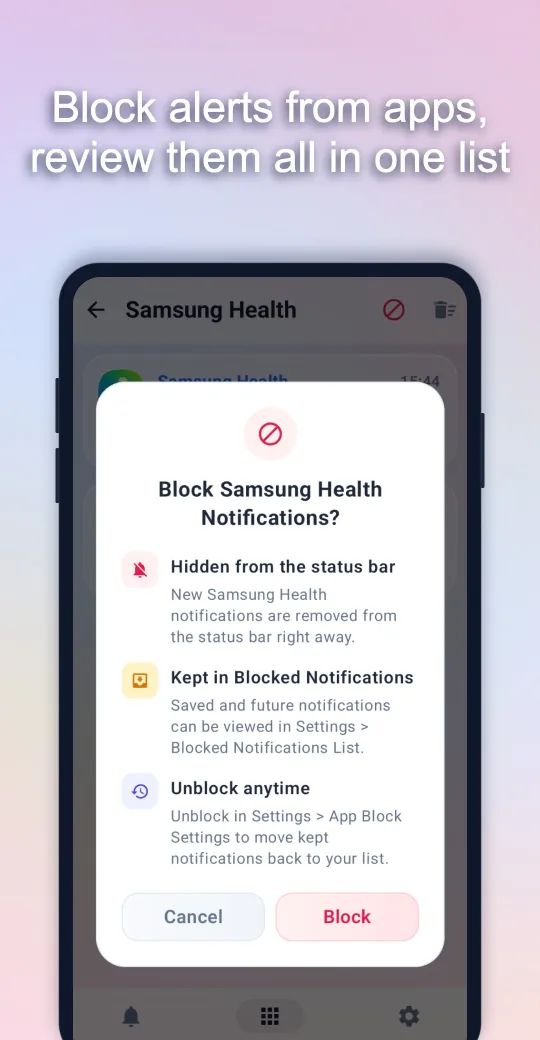
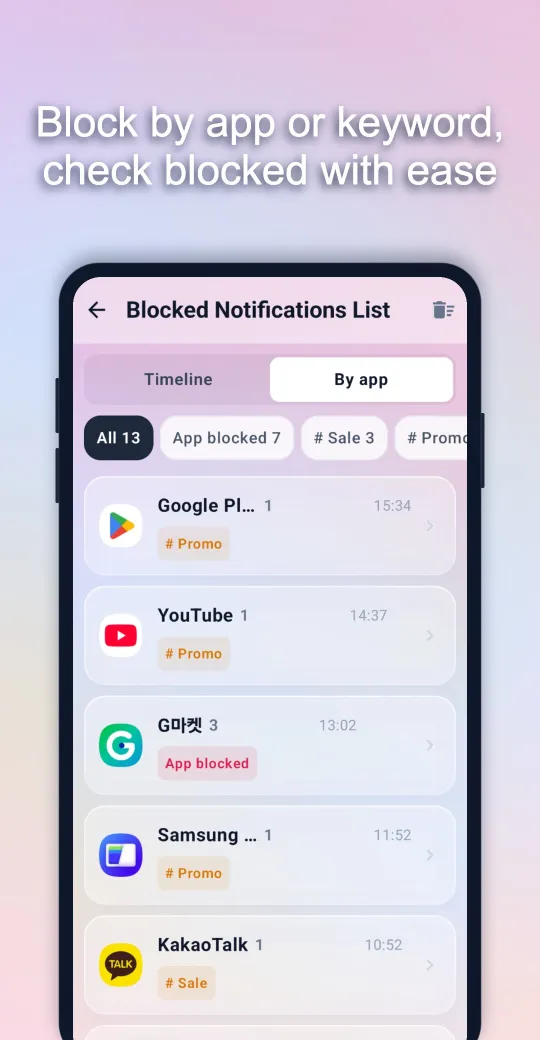
For apps that send too many promos, tap the block button at the top of that app’s screen. Once blocked, its notifications disappear from the status bar as soon as they arrive.
- Block by app: Block every notification from a specific app.
- Block by keyword: Add words you don’t want to see, like “sale” or “promo,” and any notification containing them is blocked automatically, whatever app it comes from.
Blocked notifications aren’t thrown away. They’re kept in the Blocked Notifications List, where you can view them by timeline, by app, or by keyword. If you unblock an app, its saved notifications move back to your regular list, so nothing important is ever lost.
4. A daily report of your notifications
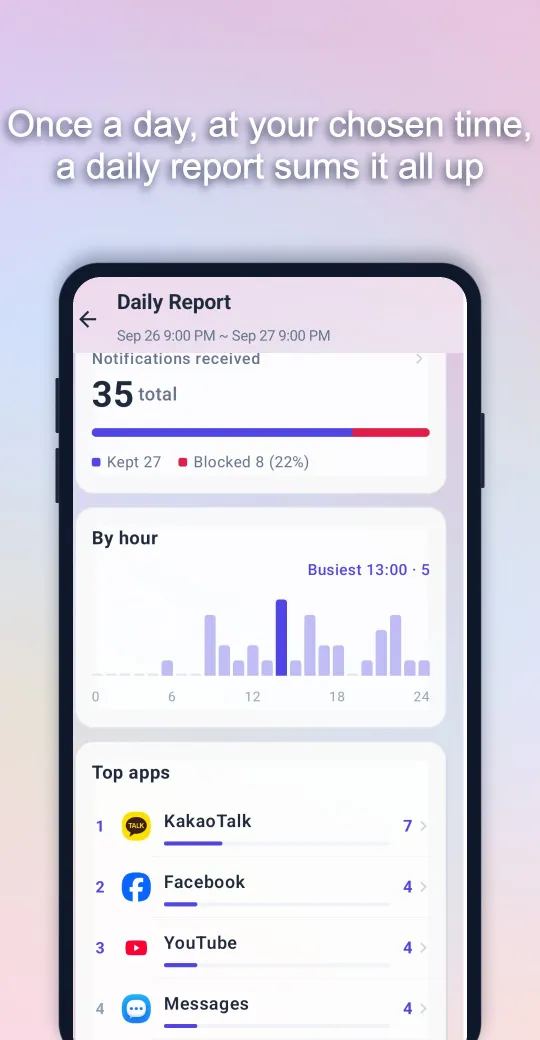
Once a day, at a time you choose, MissNoti sums up the past 24 hours:
- How many notifications you received and how many were blocked
- Notifications by hour, and your busiest hour
- The apps that sent you the most notifications
Seeing which apps are the noisiest also makes it easier to decide what to block.
Permissions and privacy
MissNoti doesn’t need a sign-up or login. Your notification history, images, block settings, and reports are stored only on your phone and are never sent to an external server.
- Notification Access (required): To record notifications from other apps, and to remove blocked notifications from the notification shade.
- Query all packages (required): To identify which app a notification came from, show its icon and name, and open that app when you tap it.
- Notifications, Alarms & reminders (optional): To deliver your Daily Report as a notification at the time you set.
Good to know
- MissNoti records notifications that arrive after you turn on Notification Access. Notifications dismissed before you installed it can’t be recovered.
- To receive the Daily Report, allow the optional notification and alarm permissions.
Why I made it
I needed a way to manage my notifications, but the established apps felt heavy with features, and their design wasn’t to my taste. So I built my own with only the features I needed, in a clean Aurora Glass design inspired by Liquid Glass on the iPhone.
It’s now the app I use most. But as I keep using it, features keep piling up, and I worry it’s drifting from the original idea of staying light and clean. I think about that every time I add something new.
If something feels inconvenient or there’s a feature you wish MissNoti had, leave a comment or email me at the address at the bottom of this page. I’ll keep improving it one step at a time.

Comments