How to Use ZoomEasy - A Screen Magnifier You Control With One Finger
Some text on your phone is just too small. Bumping up the system font size doesn’t help in every app, and it does nothing for text inside images or screenshots.
ZoomEasy is a screen magnifier I built because my own eyes started to need it. Tap the floating button, circle the part of the screen you want with your finger, and ZoomEasy enlarges just that area. It also recognizes the text so you can have it read aloud or translated.
Who it’s for
- Anyone whose aging eyes make small text and images on a phone hard to see
- Anyone who needs to read fine print accurately, like product details, terms, or manuals
- Anyone who wants to quickly enlarge part of any screen: web pages, social media, messaging apps, and more
1. Get started: show the capture button
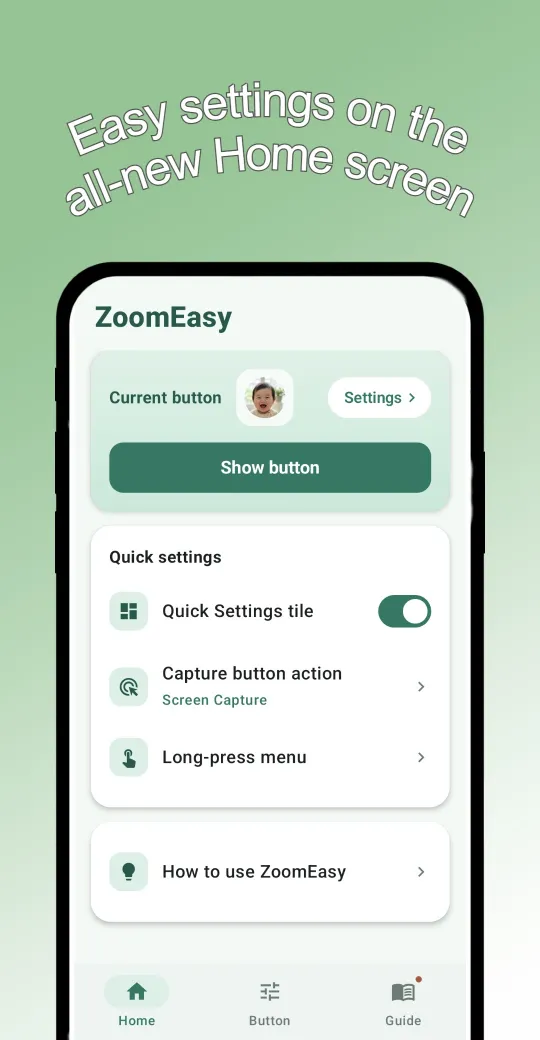
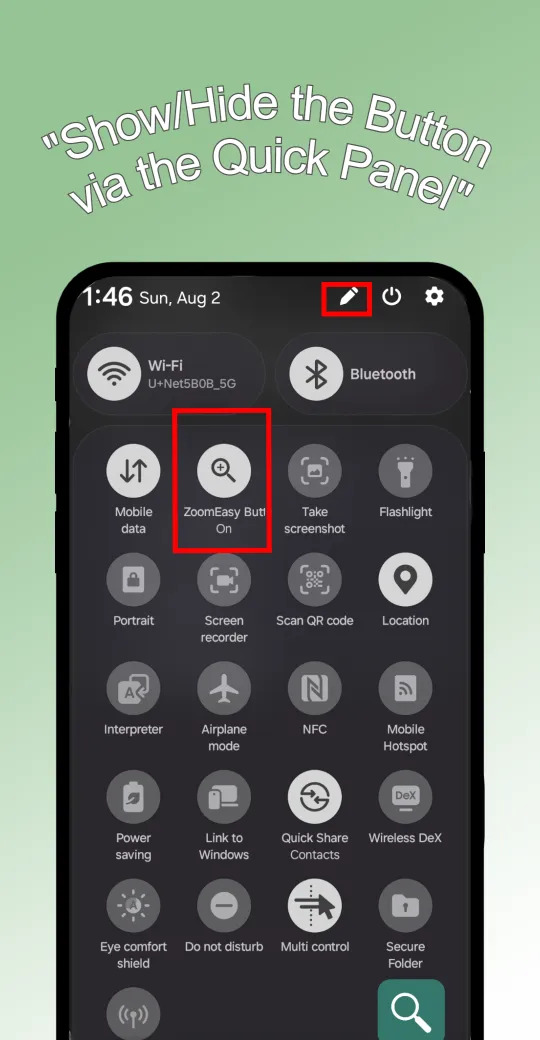
The app has three tabs: Home, Button, and Guide. On Home, tap Show button and the capture button floats on top of your screen, so it’s always within reach while you use other apps. The first time, you’ll need to turn on the Accessibility Service permission. See Permissions and privacy below for why.
If you turn the button on and off often, add the Quick Settings tile. Swipe down from the top of the screen and toggle the button without opening the app. You can add the tile in one step from the Guide tab. You can also place an icon-sized widget on your home screen and toggle the button with one tap (version 4.0.1 and later).
2. Make the button your own
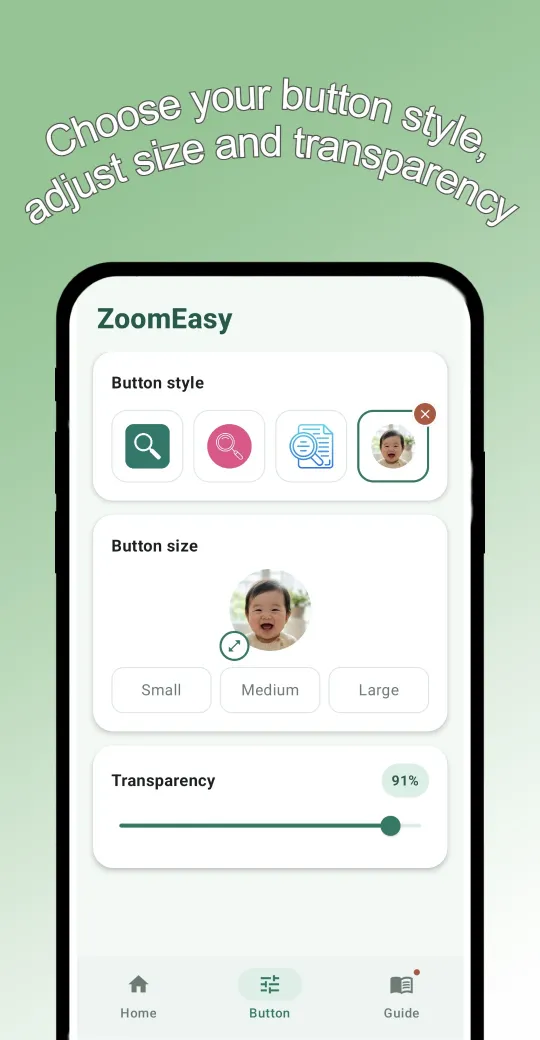
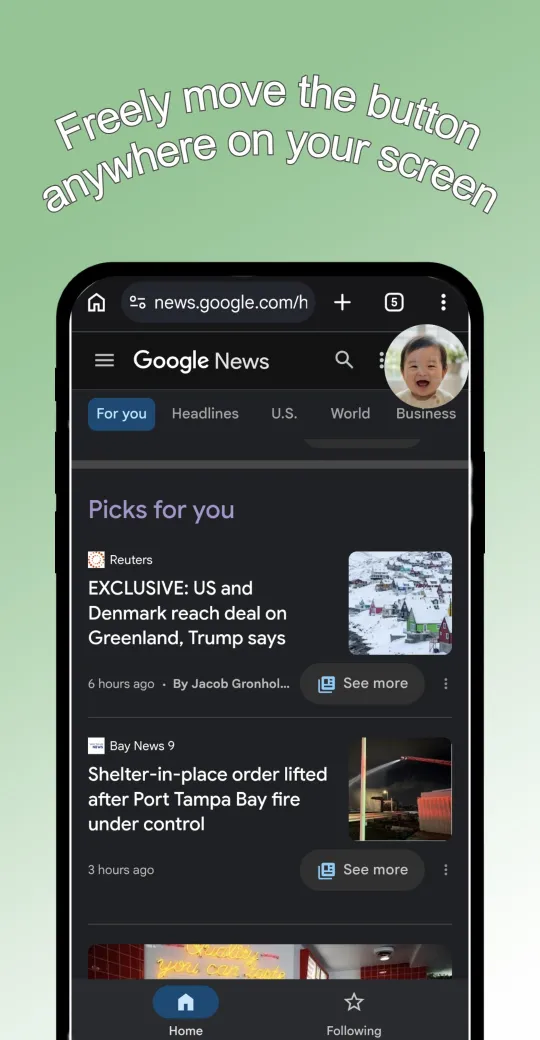
On the Button tab, pick a button style. Use one of the built-in icons, or make your own from a favorite photo of family, a pet, or scenery.
- Size: Small / Medium / Large
- Transparency: Fade it so it doesn’t get in the way of what you’re reading
- Position: Place it anywhere on the screen
3. Circle what you want to see
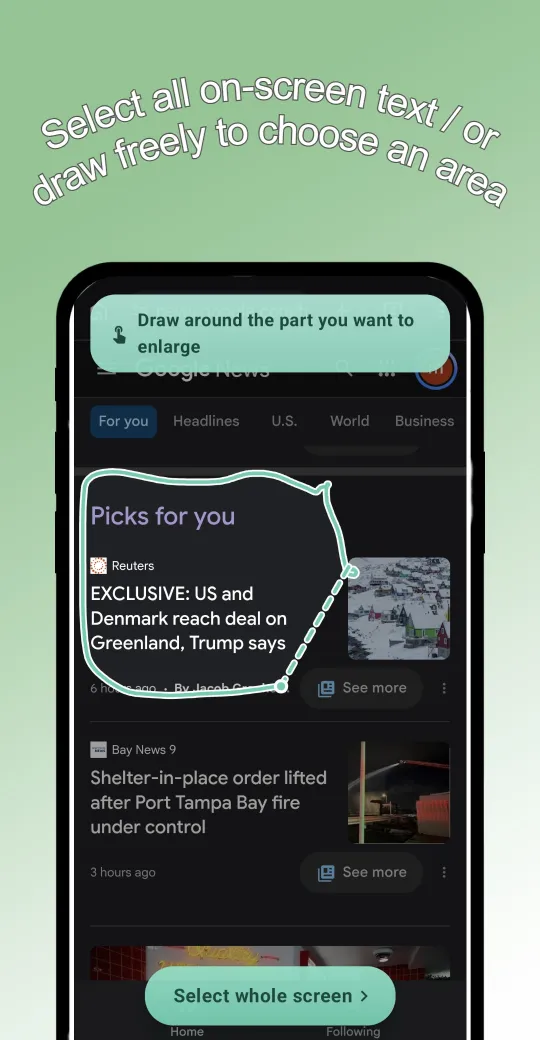
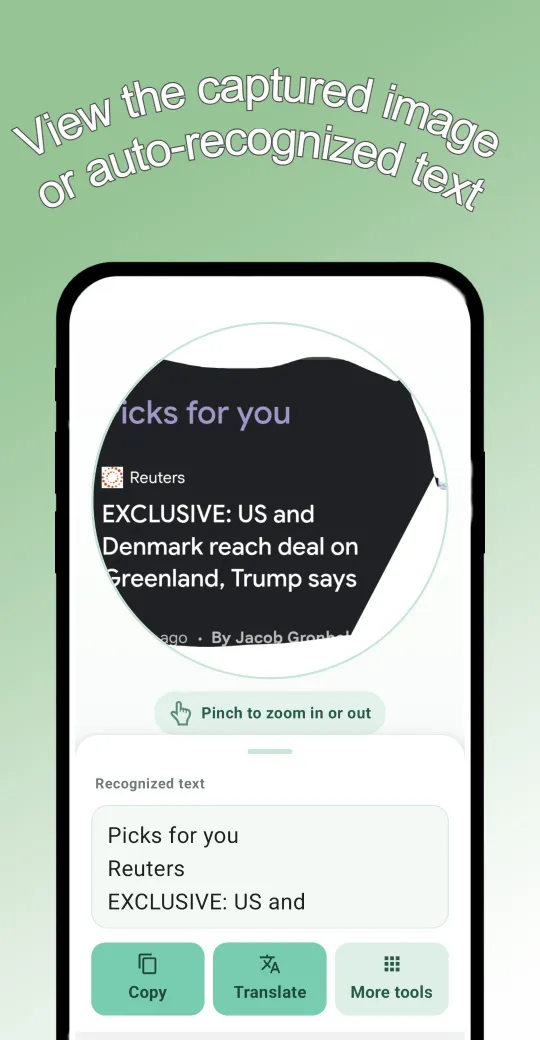
Tap the button to capture what’s on your screen. Draw around the part you want to enlarge. Only the inside of your line stays bright, so you can see exactly what you’ve selected. Need everything? Tap Select whole screen.
On the result screen, pinch with two fingers to zoom in even further. The recognized text appears at the bottom. Pull it up to read all of it.
4. Put the text to work
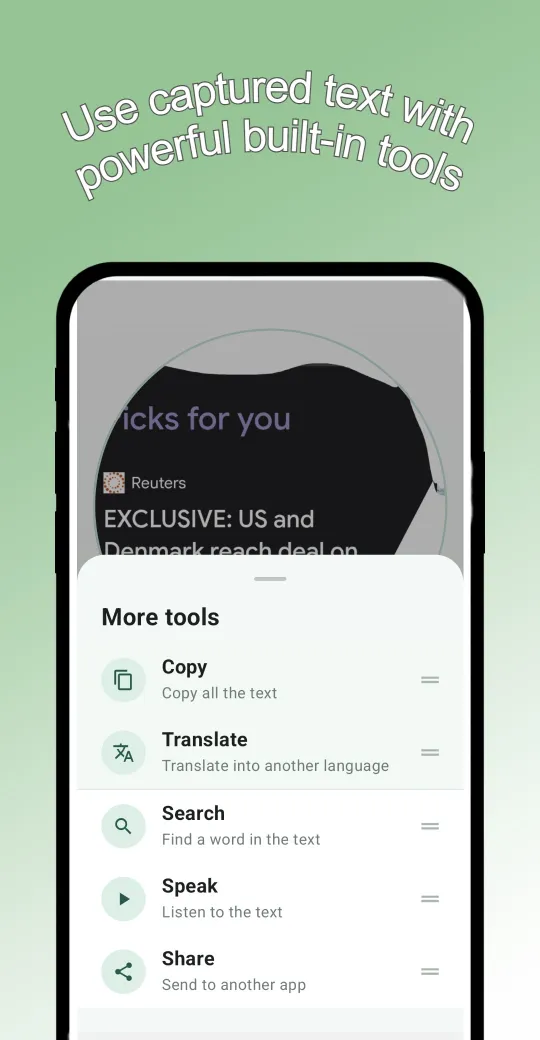
There are five things you can do with the recognized text:
- Copy: Copy all the text
- Translate: Translate it into another language. Download the translation data once, and it works instantly without using data after that
- Search: Find a word in long text and jump between matches
- Speak: Listen to the text read aloud
- Share: Send it to another app
Pick the two you use most and keep them on the buttons at the bottom of the result screen.
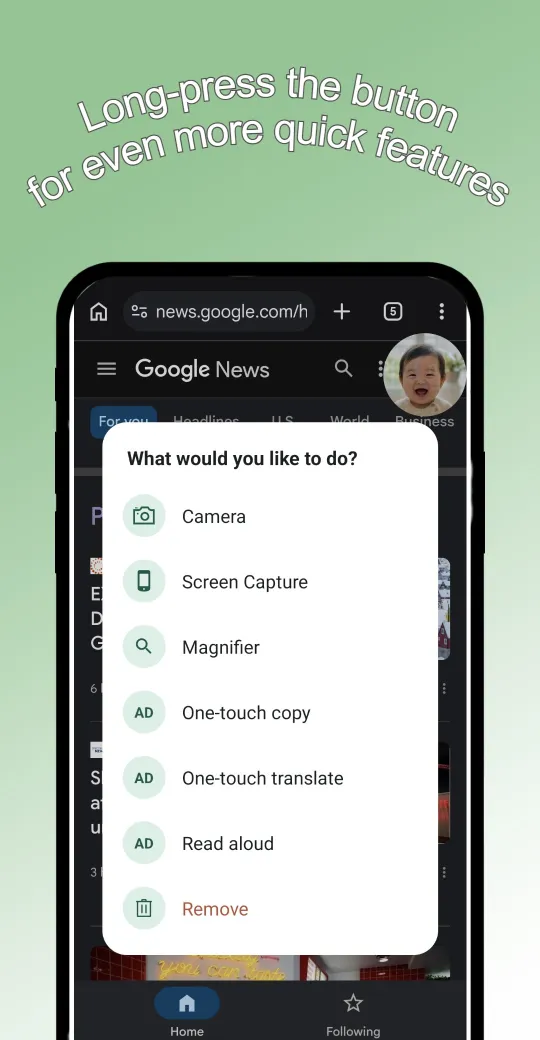
You can also choose what appears when you press and hold the capture button. Along with Camera, Screen Capture, and the Magnifier, you can add one-touch copy, translate, and read aloud, which work on the whole screen and skip the drawing step.
5. More features
- Camera: For small print off the screen, like a paper manual or the back of a product, take a photo and zoom in and recognize the text the same way.
- Real-time magnifier: Enlarge any part of the screen live, without capturing it. Great for scrolling through webtoons or articles. Available on Android 13 and above.
Permissions and privacy
ZoomEasy uses the Accessibility Service permission. It’s required for the core features: capturing the screen with one tap and opening the real-time magnifier window.
Screen content read through the Accessibility Service is only used in the moment. ZoomEasy doesn’t send personal or sensitive data to a server, doesn’t store it, and doesn’t share it with third parties. It uses only the minimum permissions it needs.
Good to know
- The real-time magnifier requires Android 13 or above.
- Some features are available after watching an ad. Purchase Remove Ads in the app to use every feature ad-free.
Why I made it
As my eyes started to age, small text got harder and harder to read. I made ZoomEasy because I truly needed it. At first it could only capture the screen, but the always-visible button bothered me, so I added custom icons, transparency control, and a Quick Settings tile. I also find the features that use recognized text handy now and then.
Honestly, I didn’t expect much from this app, yet it now has the most users of all my apps. I’ve grown attached to it and plan to keep refining it.
If something feels inconvenient or there’s a feature you wish ZoomEasy had, leave a comment or email me at the address at the bottom of this page. I’ll keep improving it one step at a time.
Comments