How to Use TalkClip - A Floating Speech-to-Text Button for Any Screen
Typing a long message on a phone keyboard is slow, tiring, and full of typos. And when an idea suddenly pops into your head, it can slip away while you’re still opening a notes app.
TalkClip puts a floating button on your screen. Whatever app you’re in, tap it and speak, and TalkClip turns your words into text that’s ready to copy.
Who it’s for
- Anyone who wants to capture ideas the moment they come
- Anyone who needs to take quick notes during meetings or lectures
- Anyone who wants to draft messages or emails without typing
1. Turn on the voice recognition button
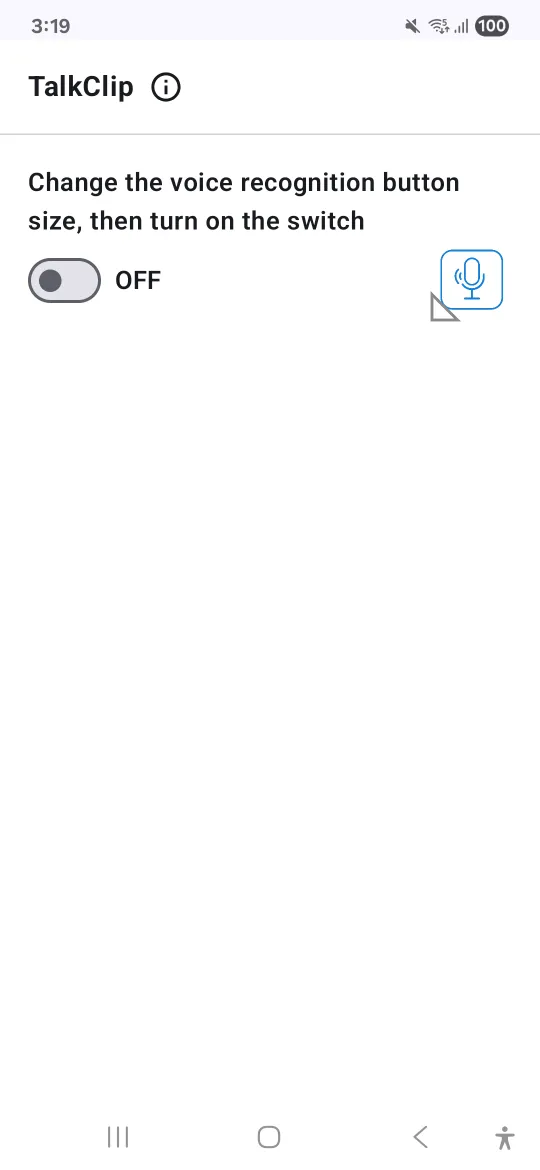
The app has a single switch and a preview of the voice recognition button.
- Drag the bottom tip of the button next to the switch to set its size.
- Turn on the switch, and the voice recognition button appears on your screen.
- Drag the floating button to wherever you want it.
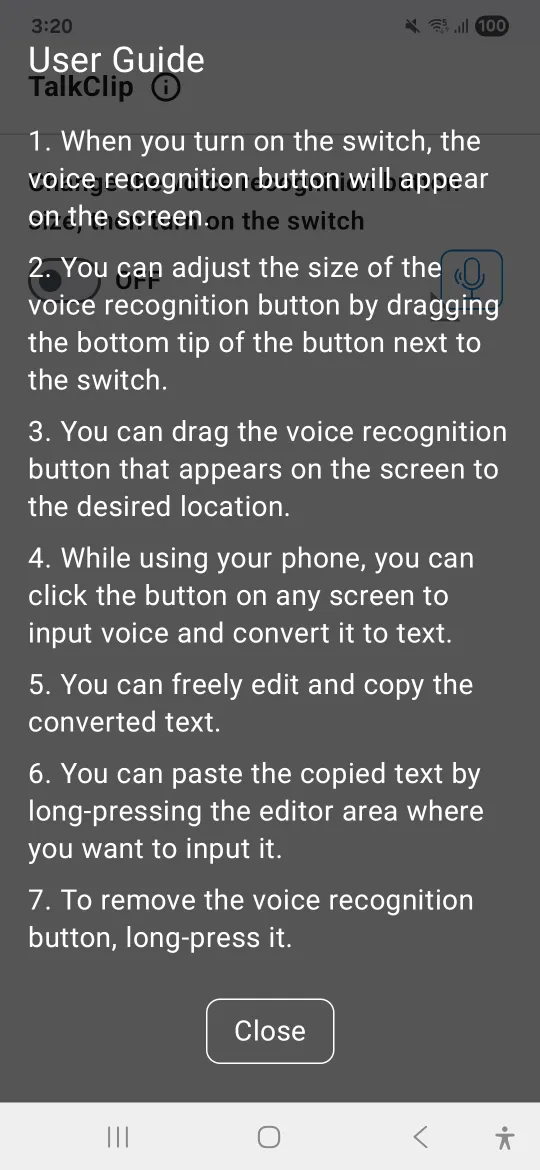
Tap the ⓘ next to the title to open the User Guide anytime.
2. Tap the button and speak
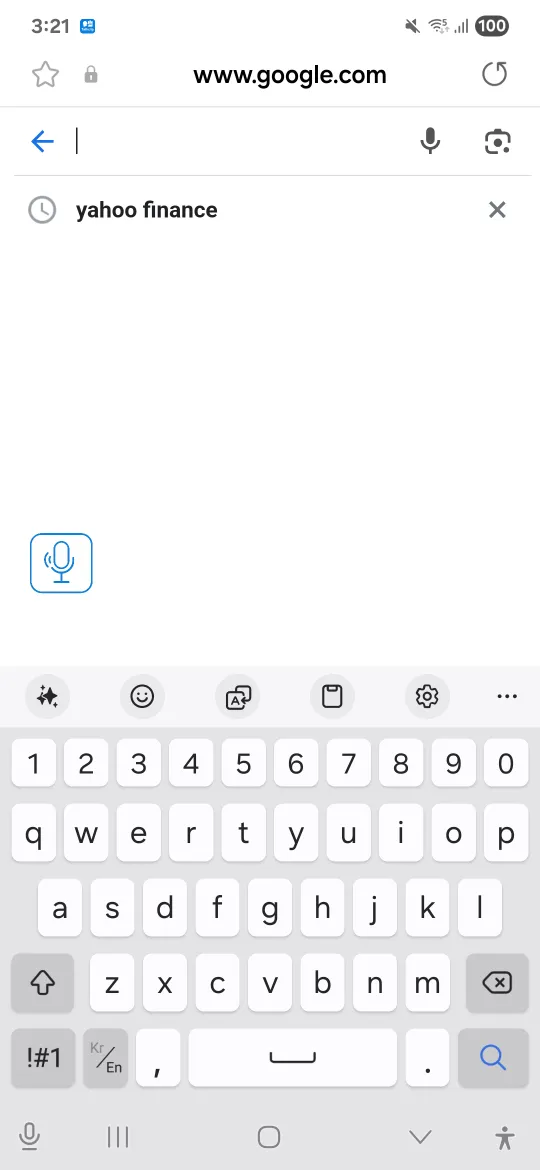
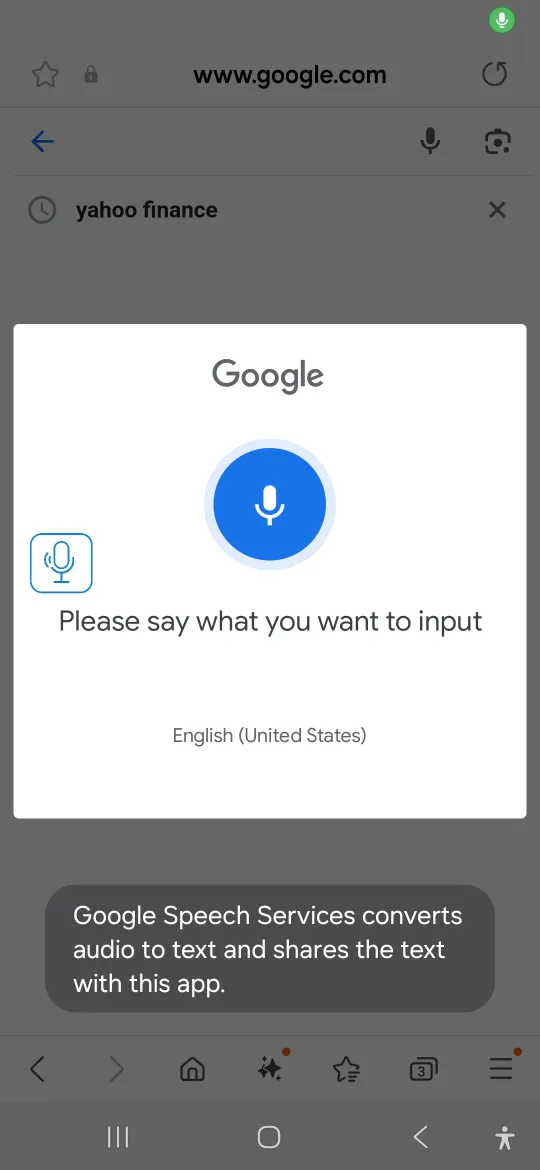
When you want to enter text in another app, tap the floating button. When the speech dialog appears, say what you want to type. Speech recognition is handled by Google Speech Services on your phone.
3. Copy the text and paste it
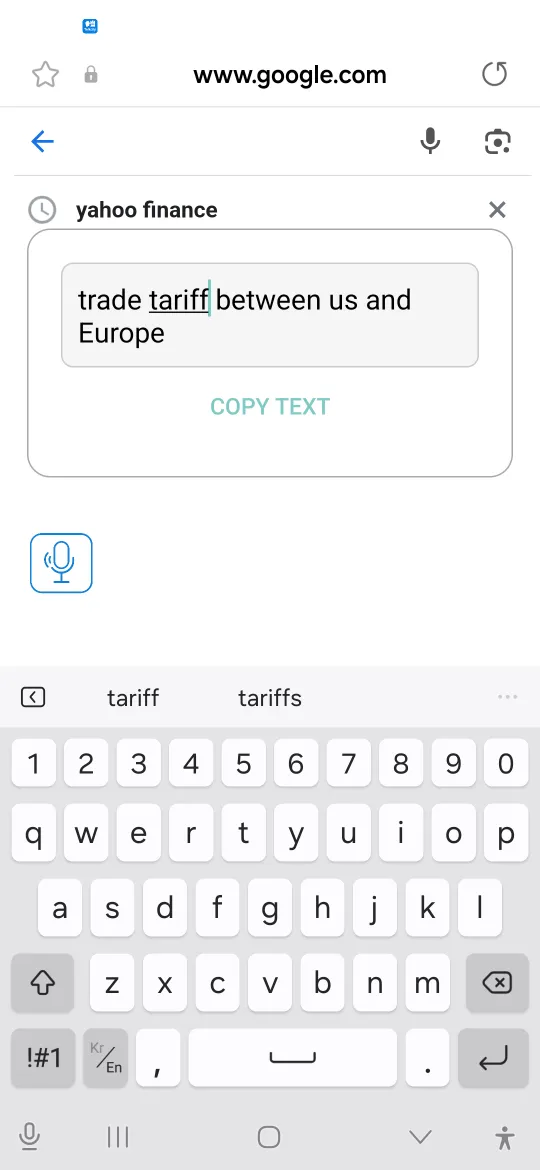
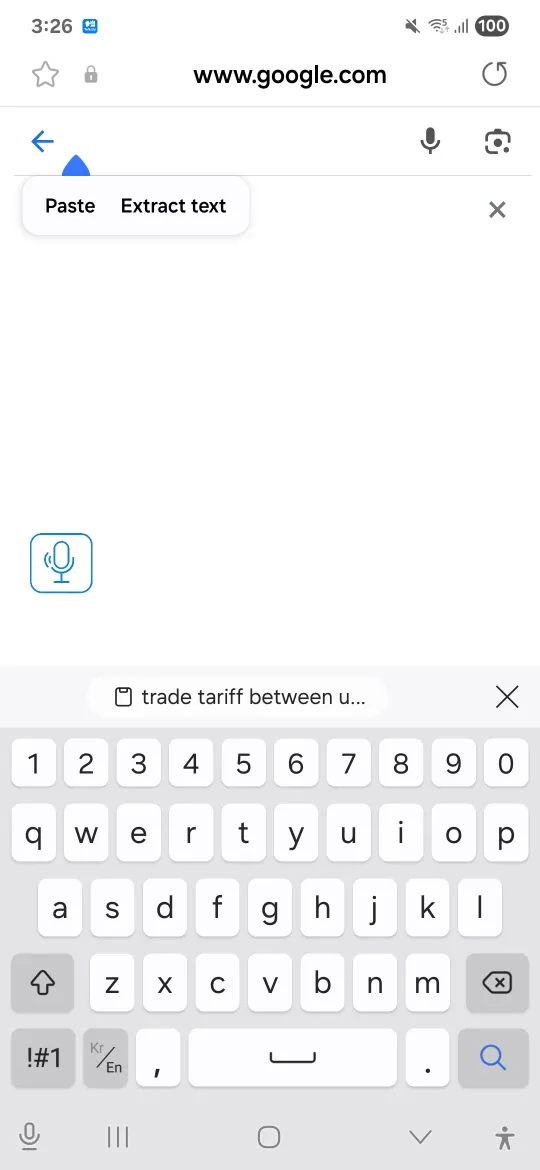
Your words appear as text in the dialog. Edit anything that wasn’t recognized correctly, then tap Copy Text.
Next, long-press the field where you want the text and choose Paste. That’s it. It works anywhere you can type: messaging apps, notes, email, search bars, and more.
When you no longer need the button, long-press it to remove it from the screen.
Permissions and privacy
TalkClip uses three permissions:
- Display over other apps: To show the voice recognition button on any screen.
- Notifications: To show the service status while the button is on.
- Microphone: To pick up the speech you want to convert to text.
TalkClip doesn’t collect any personal information beyond what it needs to work.
Good to know
- Converting speech to text is handled by Google Speech Services on your phone, which passes only the resulting text to TalkClip.
- TalkClip’s interface is available in Korean and English.
Why I made it
TalkClip started from a simple frustration: it’s hard to reply to messages while driving. To be honest, though, I don’t think plain voice-to-text alone is all that useful yet. I’m looking for ways to make it genuinely more useful.
If something feels inconvenient or there’s a feature you wish TalkClip had, leave a comment or email me at the address at the bottom of this page. I’ll keep improving it one step at a time.

Comments