How to Use Vision Gallery - Turn Your Home Screen Into a Framed Photo Widget Gallery
You look at your home screen dozens of times a day, and a grid of app icons gets a little dull. You might want to see family or travel photos there, but the standard photo widget is just a plain rectangle.
Vision Gallery puts your favorite photos in elegant frames and displays them as home screen widgets. Turn your home screen into your own little art gallery.
Who it’s for
- Anyone who wants to see photos of their kids, family, or pets on their home screen
- Anyone looking for a widget with the feel of a real picture frame, not a plain photo widget
- Anyone who wants one widget to rotate through several photos
1. Create a canvas and add photos
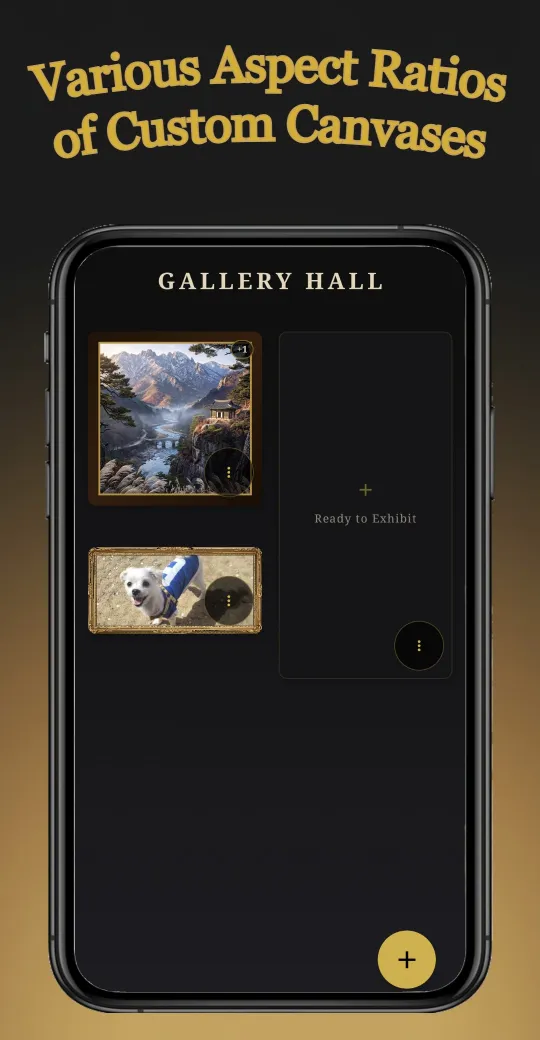
In Vision Gallery, each widget is called a canvas. Create one from Gallery Hall, the first screen, with the + button. Canvases come in different ratios, like square, portrait, and landscape, and each one is designed to fit a home screen widget exactly.
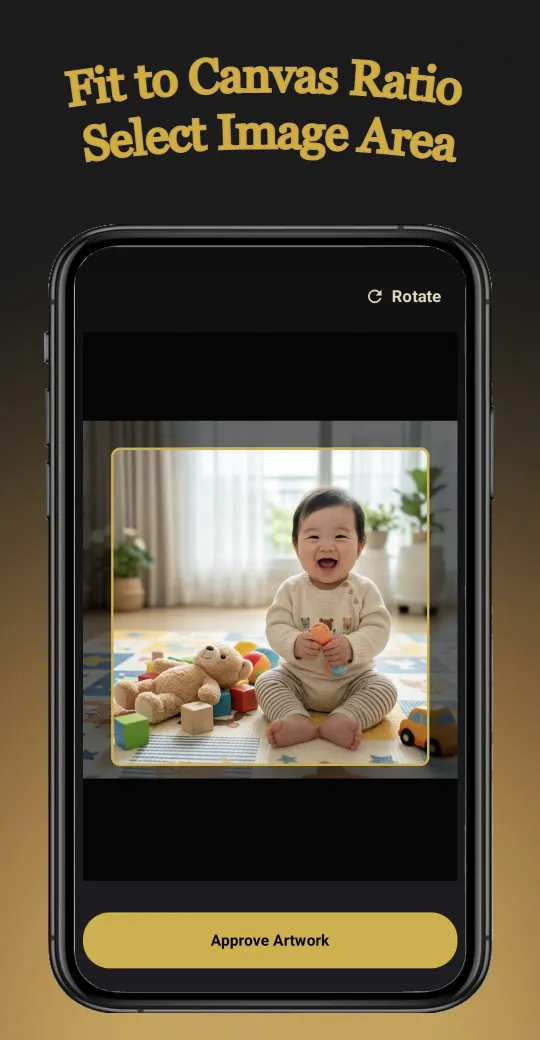
When you pick a photo, you choose which part to show to fit the canvas ratio. Rotate it if needed, then tap Approve Artwork.
2. Show several photos on one canvas
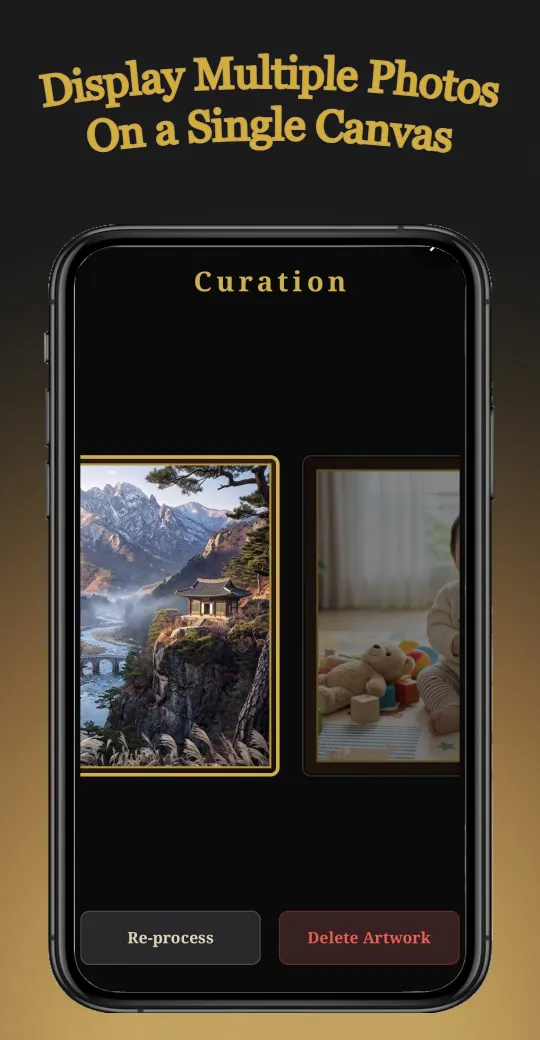
Each canvas holds up to 5 photos. On the Curation screen, browse your photos as large framed cards and reorder or delete them.
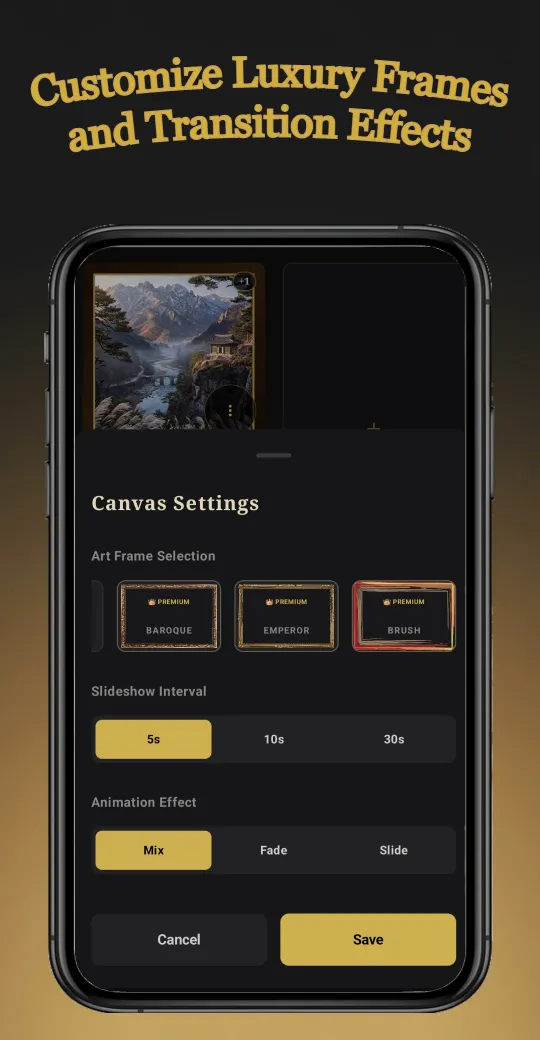
In Canvas Settings, you choose three things:
- Art frame: From Classic Wood, Minimal Black, and Modern Metal to the gilded Royal Baroque and Royal Emperor, and Art Brush with its painterly strokes
- Slideshow interval: 5s / 10s / 30s
- Animation effect: Mix / Fade / Slide
3. Add it to your home screen from the app
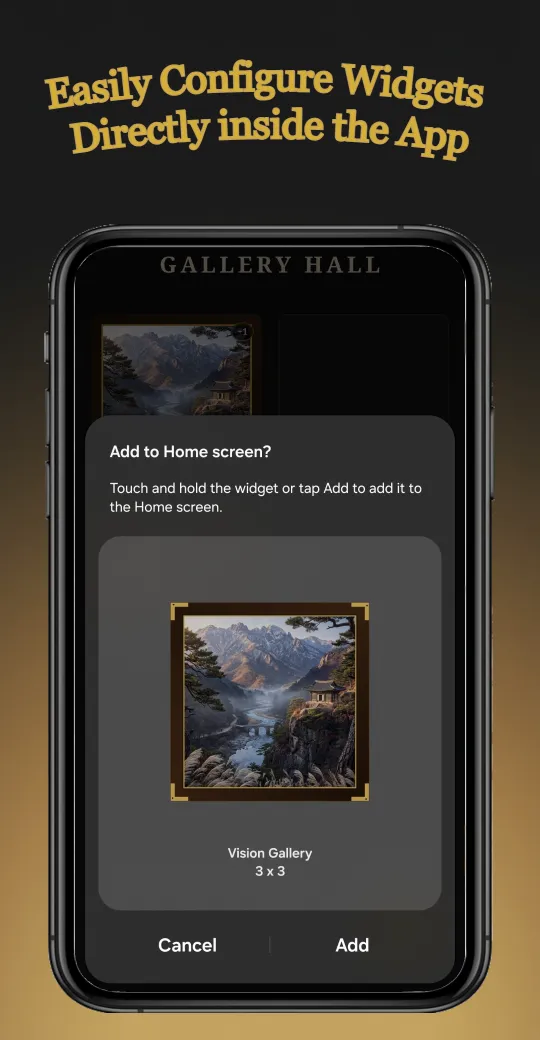
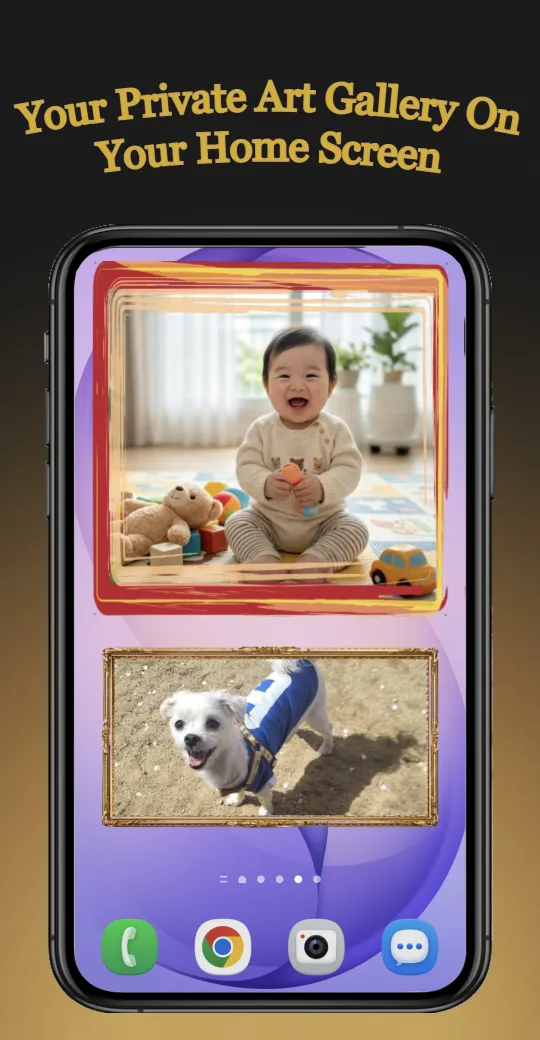
When your canvas is ready, add it to the home screen right from the app. No need to dig through the widget list. Just tap Add in the Add to Home screen? dialog. Canvases already on your home screen get a badge, so you won’t add the same one twice by mistake.
4. A growing library of premium frames
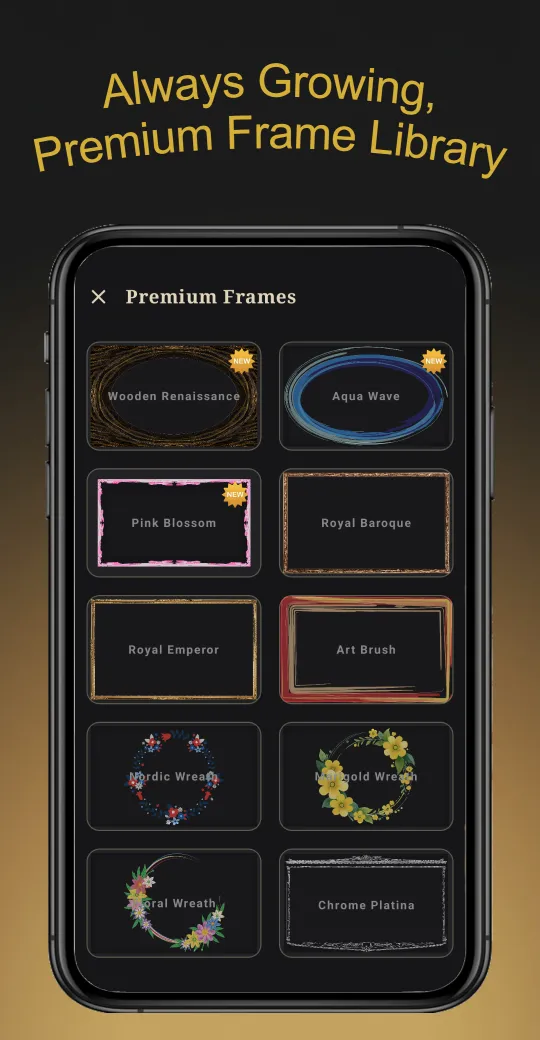
New frames keep being added. From ornate gilded frames to floral wreaths and minimal borders, pick the one that suits each photo.
Good to know
- Each canvas holds up to 5 photos. To show more, create several canvases and spread them across your home screen.
- Widget size follows the canvas ratio, so create canvases in ratios that fit the empty spaces on your home screen.
Why I made it
There are plenty of feature-packed widget apps, but I couldn’t find an elegant widget made just for photos. Vision Gallery is a photo-only widget built around a luxury concept. What sets it apart is that you can hang family photos and cherished memories in a variety of frames and watch them change with animations right on your home screen. It’s also the app I’ve put the most care into.
If something feels inconvenient or there’s a feature you wish Vision Gallery had, leave a comment or email me at the address at the bottom of this page. I’ll keep improving it one step at a time.

Comments